




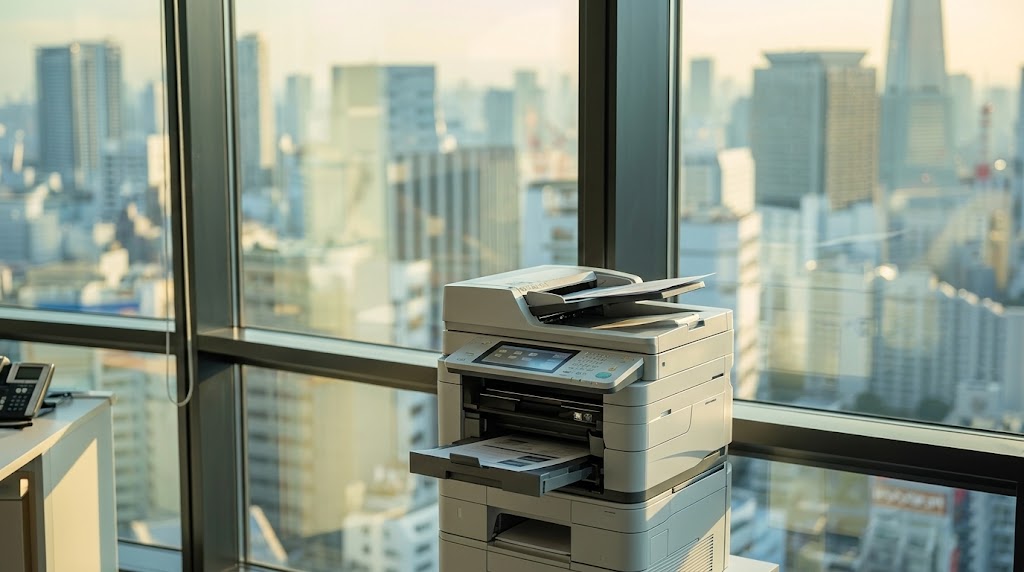
Printers are a part of daily office operations, even businesses in Dubai rely on digital tools and paperless workflows. From printing invoices and business reports, to preparing contracts and client documents printers help employees complete tasks efficiently. Printers are really helpful unless they breakdown. The issue can interrupt daily tasks, office operations and employees productivity.
You do not always need to repair a printer. Some small problems, such, as paper jams, ink or toner alerts, loose cable connections or temporary network issues can usually be fixed by troubleshooting steps. Checking the paper tray restarting the printer updating the drivers or making sure the network connection is secure might be enough to get the printer working again.
In this Blog Post, we discussed 7 common printing problems in Dubai and when to call for repair.
TABLE OF CONTENT
1. Paper Jams – Most Common Printer Problem
A paper jam is the most common problem that interrupts daily office printing. It happens when a piece of paper get stuck inside or does not move correctly through the paper feed system. Even a small piece of paper jam, in the printer can slowdown work especially in busy offices where printers are used everyday.
Understanding how paper jam happens and how to fix them safely can help the employees workflow.
The most important thing to note about the paper jam is that you should never pull the jammed paper. Doing so may cause damage to your printer’s internal parts. Moreover, you will end up leaving pieces of paper trapped inside your printer’s parts.
But how to get over this problem?
This is how the Printer Repair Dubai experts recommend dealing with a paper jam situation:
- Refer to your printer’s specifications for instructions to remove the paper jam.
- However, preventing the paper jam is always better than dealing with it. You should make sure to use the right kind of paper.
- Moreover, you should be careful while inserting paper in the trays.
- Make sure you don’t use wrinkled paper.
- Furthermore, maintain your printer by cleaning its rollers, etc.
2. Faded or Light Prints – Poor Print Quality
Faded printer prints are a common issue that make prints hard to read. It usually occurs due to insufficient level of ink or toner, blocked printheads, wrong settings or poor quality cartridges.
How to troubleshoot faded printer prints:
- Check the ink or toner level: You should do this through the control panel or printer software. If the cartridge is empty or almost empty, you need to change the cartridge.
- Check the printer settings: The quality setting for printing should not be set to Draft or Economy if higher quality is needed.
- Clean the printheads: For inkjet printers, use the printhead cleaning utility that comes with the printer if the nozzles are clogged.
- Check the cartridges: Make sure that the cartridges are compatible, properly installed, and not broken.
- Try to print a test page.
However, if the prints still continue to come out light after doing all of this, the ink cartridge might be at fault and it should be replaced. It is important to have your printer repaired by a professional in Dubai.
3. Overloaded Queue – Documents Stuck in the Queue
Printer queue issues arise when numerous documents in queue, interrupted print orders, and spooler errors prevent print orders from going through. Because of this, print orders get stalled in the queue, affecting important tasks in the office.
How to troubleshoot Overloaded Queue:
- Checking pending prints: Check your print queue for any pending prints that need to be printed from within the computer’s print setting.
- Cancelling hung jobs: If you notice any hung jobs in the print queue, cancel those jobs and allow the print queue to clear up.
- Restarting the printer: Turn the printer on and off again, and then print out a new test file.
- Restarting the Print Spooler: Within Windows, open the services application and restart the Print Spooler. In case there are still hung jobs, other troubleshooting steps should be followed.
- Connection check: Make sure that the printer is well connected and set as the default printer.
If the problem of the printing queue freezes or document remains stuck after troubleshooting, then there may be an issue with old drivers, network connections, or spooling errors which might need to be sorted out by technical support.
4. Printer Offline Errors – Printer Not Responding
Printer offline error happens when your PC cannot connect to a printer, although the printer is switched on. Printer settings that are wrong, outdated printer drivers, disconnected cables, or faulty network communication may cause a printing problem.
How to troubleshoot Printer offline errors :
- Connection check: Make sure the USB cords are plugged in properly or that the printer and computer are both logged into the right Wi-Fi network.
- Printer settings check: Open up the printer settings on your computer and make sure that the right printer is set to default. For Windows users, check if the printer is not set to “Use Printer Offline.”
- Restarting the device: Turn off the printer and computer and then restart them, and try printing again.
- Installing new drivers: Install the latest versions of the printer’s driver software if any older versions are being used.
- Test the connection: Print a test page.
However, in case your printer is still not responding after trying all the above methods, then there could be certain persistent issues such as driver error, network configuration problem, or hardware problems, which might need professional assistance to fix.
5. Slow Printing – Delays in Office Workflows
A slow printer may interfere with work in the office, hinder the printing of vital documents and decrease efficiency of the employees. Reasons for it to happen are big files, high resolution printing, old drivers, low speed connection and several users working on one printer.
How to improve slow printer :
- Check Print Settings: Please ensure that you have used the Standard or Normal setting instead of High Quality setting unless high-quality print is needed.
- Reduce File Size: Reduce the file size of PDF and image files before sending them to print.
- Update Printer Driver: Make sure that you update your printer driver to its latest version.
- Printer Network Speed: Make sure that the printer is connected to the network speedily, especially when multiple computers are using the printer.
- Do Not Send Too Many Files at Once:
In case the printer does not become faster after applying all the above recommendations, the problem might be hardware-related, memory-related or even have something to do with the network setup. Printer diagnosis and maintenance by professionals will solve the problem.
6. Clogged Printhead
Apart from cartridge warnings such as “low on cartridge” or “empty cartridge,” there is always an indication of the problem using some sort of error code depending on the cartridge. In most cases, the clogged printhead is what causes the problem, especially after keeping the printer unused for a long time. It is also among the issues found with printers from Canon, Brother, and HP.
How to improve Clogged Printhead :
- On your Windows computer that connects to the printer, open the Control Panel.
- Next, click on ‘View devices and printers’ under the column named Hardware and Sound.
- Identify the printer from the screen and right-click on it. Then, choose “Open” from the pop-up menu.
- Afterward, launch the printer management app by double-clicking the relevant icon.
- Choose Printer Settings or an equivalent option.
- Now, check out Print Quality Tools and locate the option named Clean Printheads.
- Finally, carry on with the on-screen instructions to successfully perform a printhead cleaning.
In case cleaning of the printhead does not solve the issue, ensure that you consult the printer’s manual prior to re-attempting it since too much ink is wasted through multiple cleaning. However, in case of continued production of faded prints and cartridge errors, then it might be time for a technician.
7. Low or Empty Ink Cartridges
Warnings regarding low or empty ink cartridges can be annoying at times, particularly if you have just installed new ink cartridges but still see the same warning message on your printer. There could be various reasons for that such as improper cartridge installation and poor quality cartridges among others.
How to troubleshoot Low or Empty Ink Cartridges :
- Cartridge installation test: Take out the cartridges and reinsert them to ensure they are installed properly. If necessary, refer to the manufacturer’s instructions.
- Check compatibility of the cartridges: Ensure that the cartridges you have bought are compatible with your printer.
- Printer settings test: Test the printer settings and ink level detections to find if there are any issues.
- Run a cleaning cycle: When your printed documents are faded or lines are missing, use the built-in printer cleaner to resolve the problem.
- Replace the cartridge: If the cartridge is out of ink or faulty, replace it with a new one that is compatible with the printer.
Alternatively, you can contact a professional printer repair in dubai to diagnose the issue and get a reliable, long-lasting solution.
When to Contact a Professional for Printer Repair Service in Dubai
Although a number of problems in printers can be resolved with the help of some basic troubleshooting measures, there are some cases when one needs a specialist. Doing something about the issue without appropriate knowledge and equipment may even worsen the situation.
You should consider professional printer repair service in Dubai in some case:
- There are frequent paper jams although the paper tray was checked and all is well there;
- Print quality is low despite ink/toner cartridge change;
- The device produces strange noises – grinding, clicking or buzzing sounds;
- There are frequent disconnections with the office network;
- There are still error messages despite restarting the printer;
- The printer does not function despite performing basic troubleshooting;
- There is a need to clean/renew/repair the device’s internal components.
Such problems in business printers will cause some work interruptions. An experienced printer repair in Dubai specialist will be able to diagnose the problem and perform necessary repairs.
Choose Reliable Printer Repair Services in Dubai
Having a good printer repair service can make a huge difference when printer issues begin to disrupt the flow of your office work. From paper jams, print quality issues, connectivity problems or even printer errors, a professional service provider can provide the necessary help in getting your machines back into working order.
Kopytech provides printer-related services in Dubai and Sharjah, helping businesses manage their printing needs through:
- Printer Troubleshooting & Diagnosis: Identification of common printer problems and suitable solutions.
- Office Printer Repair: Diagnosis and fixing of printer issues disrupting the flow of daily office activities.
- Printer Maintenance & Servicing: Maintaining printers in good condition through maintenance.
- Technical Support: Fixing of printing errors, connectivity problems, and other common printer issues.
- Printer Rental & AMC Solutions: Offering printer rentals and Annual Maintenance Contracts (AMCs) for businesses.
Kopytech is here to assist you with all your printer repair and maintenance needs. Get in touch with Kopytech for the ideal printer repair and maintenance solution for your business in Dubai.
FAQ
Kopytech optimizes printer performance, suggests the right devices, and upgrades outdated machines.
Regular printer maintenance helps prevent paper jams, improve print quality, reduce mechanical issues, and maintain consistent performance. Cleaning printer components, checking rollers, replacing worn parts, and updating drivers can help minimise office downtime.
Kopytech offers printer rental, repair, maintenance, and Annual Maintenance Contract (AMC) solutions for businesses in Dubai and Sharjah. They improve productivity, lower costs, enhance security, and ensure seamless, worry-free printing operations.
Common office printer problems include paper jams, faded prints, streaks, offline errors, slow printing, overloaded print queues, and network connectivity issues.



Leave A Comment